
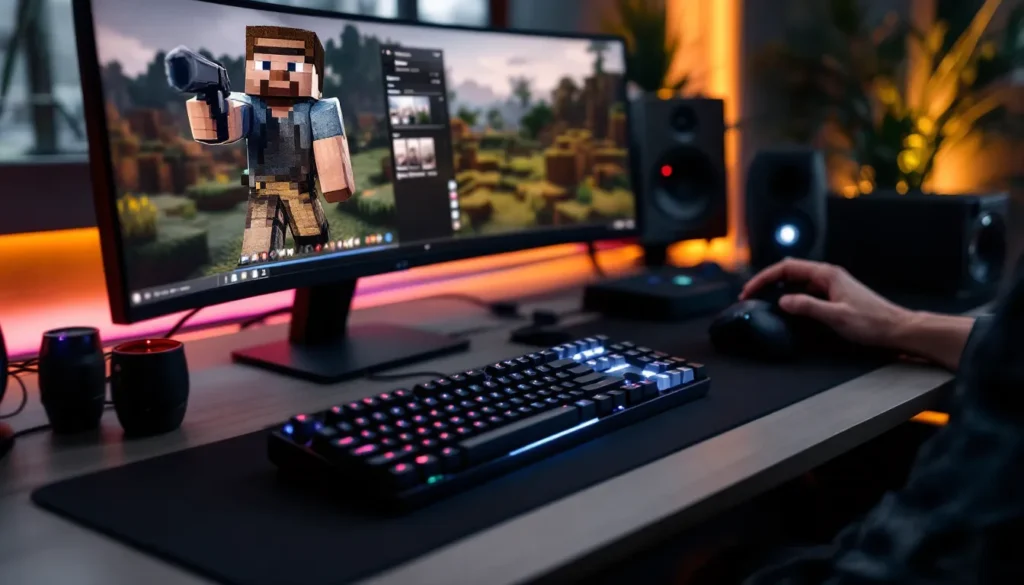
Minecraft key bindings are the foundation of how you interact with the game, whether you’re mining resources, building structures, or battling mobs in survival mode. From the moment you spawn into a new world, your keyboard becomes your primary tool, and knowing exactly which keys do what can mean the difference between thriving and struggling. While the default Minecraft controls work fine for casual players, anyone serious about the game, whether they’re grinding for rare materials, competing in PvP, or creating elaborate builds, quickly discovers that customizing their key setup unlocks a whole new level of play. This guide covers everything you need to know about Minecraft keys, from understanding the default layout to building a personalized control scheme optimized for your playstyle.
Key Takeaways
- Minecraft keys are essential to gameplay success, with default controls working for casual players but customization unlocking advanced performance for serious players.
- Understanding the default key layout—W/A/S/D for movement, Spacebar for jump, and mouse buttons for breaking/placing blocks—provides the foundation for efficient gameplay.
- Customizing your key bindings takes just minutes through Options > Controls and can dramatically improve comfort, reduce hand fatigue, and boost reaction times in combat or building.
- Different playstyles require different Minecraft key setups: PvP players cluster combat keys around their left hand for speed, builders prioritize tool access, and survival players balance both approaches.
- Testing new key bindings in Creative Mode or peaceful worlds before committing ensures your setup feels intuitive and optimized for your hands and gaming history.
- Controllers offer an accessible alternative to keyboards, especially for relaxed gameplay and players with accessibility needs, though keyboard and mouse remain the competitive standard for speedrunning and PvP.
Understanding Minecraft Controls and Key Binding Basics
The Default Keyboard Layout for Beginners
Minecraft’s default key layout has remained largely consistent across versions, making it relatively intuitive for new players. The W, A, S, and D keys handle movement, forward, left, backward, and right respectively, while the Spacebar makes you jump and ascend in Creative Mode. Left Mouse Button breaks blocks, Right Mouse Button places blocks or activates features, and the Middle Mouse Button (or Q on some setups) grabs the block you’re looking at directly into your inventory. Your inventory opens with E, and you navigate the world’s interface with Esc for pause menu.
For hotbar access, the nine slots at the bottom of your screen holding your most-used items, you press number keys 1 through 9, letting you quickly swap tools without opening inventory. Shift acts as a hold-to-sneak modifier, keeping you from falling off edges and letting you place blocks under your feet. F toggles first-person or third-person perspective, while F5 cycles through camera angles. The Tab key shows player names in multiplayer, and T opens chat for communication on servers.
These defaults work well enough that most casual players never feel compelled to change them. But, the accessibility and flexibility of Minecraft’s control system means that almost every aspect can be rebound to suit different preferences, hand positions, or accessibility needs.
Why Key Customization Matters
Once you start taking Minecraft more seriously, building complex redstone contraptions, engaging in PvP combat, or speedrunning, default keys start feeling inefficient. A player focused on rapid block placement and breaking might find themselves reaching awkwardly for the mouse buttons. A builder might benefit from binding frequently-used construction tools to keys closer to their movement fingers. PvP players often remap sprint, attack, and block place to reduce the milliseconds needed to respond in combat, where frames and reaction times matter.
Personal comfort plays a huge role too. Some players have hand fatigue from default layouts, while others simply have muscle memory from other games (like competitive shooters) that makes a different layout feel more natural. Minecraft’s flexibility means you can bend the control scheme to fit you, rather than the other way around. This is especially true for players looking to buy Minecraft cheap on secondary accounts or trying different Java editions, consistent key bindings across accounts speed up your transition and let you play at your best immediately.
Essential Keys for Movement and Navigation
Movement is the core of Minecraft gameplay. Beyond the basic W/A/S/D for direction, Spacebar is crucial, it’s your jump key and also your primary way to ascend in Creative Mode. Hold it to climb upward. Shift deserves special attention because it toggles sneak mode, which drops your walking speed significantly but prevents you from falling off blocks. This is invaluable when building high above ground or navigating narrow ledges.
Ctrl or a remappable key handles sprinting, letting you run faster while consuming hunger in Survival Mode. By default, this is often double-tapping forward or holding a designated sprint key (configurable in settings). R opens your crafting recipe book (in newer versions), making it easier to find recipes without memorizing them or visiting a crafting table.
Navigation keys extend beyond pure movement. F toggles perspective, letting you see your character model and adjust your viewing angle. F1 hides the entire HUD, useful for screenshots or streaming. The Scroll Wheel or number keys 1-9 let you cycle through your hotbar, switching tools and items mid-action without pausing. On some servers or modded setups, players bind additional keys for Auto-Sprint (always running) or Zoom (binoculars effect), features that aren’t native but can be added through mods or settings depending on your version.
Movement efficiency directly impacts your play speed. A speedrunner might configure their keys so they’re never fumbling for sprint or jump, while a creative builder might disable fall damage considerations entirely, allowing for faster navigation through their workspace.
Combat and Interaction Controls Explained
Defensive Mechanics and Block Placement
Combat in Minecraft hinges on two actions: Left Mouse Button for attacking/breaking and Right Mouse Button for placing blocks or interacting with objects (opening doors, chests, crafting tables, etc.). These are the most fundamental, and fastest, inputs you’ll make during PvP encounters. Attack speed (represented in Attacks Per Second or APS) matters significantly in combat: faster clicking gives you a damage advantage, but proper key setup reduces the physical strain of repeated clicking.
Block placement deserves special emphasis because it’s your primary defensive tool. In PvP, a well-placed block can block incoming damage, create a platform to escape upward, or shield you from projectiles. Some advanced players remap block placement to a nearby key like C or V so they can sprint-jump while simultaneously placing blocks, an action that’s nearly impossible with the default right-click when using separate mouse and keyboard.
Shift (sneak) also plays a defensive role because it prevents knockback from pushing you off edges. This subtle mechanic becomes critical in combat scenarios where you’re fighting near water, lava, or heights.
Advanced Action Keys for Building and Breaking
Breaking blocks fast matters for mining and combat efficiency. Some players bind Attack to a separate key (like the Mouse Scroll Wheel Down) to bypass the left-click rate limit, especially during speedrun mining phases. Mine (left-click) can be held down to continuously break blocks, while Place (right-click) sometimes benefits from rapid tapping rather than holding.
Interaction keys come into play constantly: Use Item (right-click default) opens doors, chests, furnaces, and anvils without requiring inventory. Drop Item (default Q) is remapped by many players to a more accessible key when doing large-scale building or mining, as they’ll be dropping materials or unwanted blocks frequently. Some builders bind a key to automatically drop entire stacks, a feature usually available through mods but sometimes achievable through game settings.
Crouch (Shift) is particularly useful in building because it lets you place blocks on the face of blocks you’re standing on, rather than above your head. This single mechanic enables complex builds and requires muscle memory, having sneak instantly accessible is essential. Players engaged in large-scale building projects sometimes also bind Undo or Redo (features in Creative Mode and some mods) to nearby keys for faster iteration.
How to Customize Your Key Bindings in Minecraft
Step-by-Step Customization Process
Customizing your Minecraft keys is straightforward and takes just a few minutes:
- Launch Minecraft and go to the main menu. Select Options (or Settings on console versions).
- Navigate to Controls (sometimes labeled as “Key Binds” or “Button Binds” depending on your version). This opens a full list of every action in the game.
- Locate the action you want to rebind, for example, Attack, Place Block, Sprint, or Sneak. Click or press on it to activate the binding screen.
- Press the key you’d like to assign. The game immediately registers your input and reassigns that action.
- Confirm conflicts if any, if you try to bind a key that’s already assigned to another action, the game will warn you. You can either overwrite or choose a different key.
- Save your changes by closing the menu. Minecraft automatically saves all key bindings to your local configuration file.
On console versions (PlayStation, Xbox, Nintendo Switch), the process is similar but uses controller buttons instead of keyboard keys. The game walks you through remapping with prompts like “Press the button you want to assign.”
If you ever want to reset to defaults, there’s usually a Reset button in the Controls menu that reverts all your bindings in one action. This is useful if you’ve experimented and want to start fresh, or if you’re switching between playstyles.
Tips for Ergonomic and Efficient Key Setup
Ergonomics matter more than most players realize. Your hand should rest naturally on the keyboard with your left fingers on A, S, D, F, and Space within easy reach. Any key requiring a dramatic hand stretch will slow you down and cause fatigue during long sessions. Position your most frequently used actions, sprint, sneak, attack, place, within the range of your relaxed hand position.
Consider your own gaming history and muscle memory. If you’ve played competitive shooters like Counter-Strike, Valorant, or Apex Legends, binding sprint to Shift (as in those games) might feel more natural than toggling it. Similarly, if you’re used to crouch being Ctrl, remapping it from Minecraft’s default might help you transition faster.
Test your setup in low-stakes situations before committing to it long-term. Spend 20 minutes in Creative Mode or a peaceful Survival world using your new bindings. If something feels awkward, adjust it. Your setup should feel intuitive after a few minutes: if you’re thinking about where a key is, it’s not optimized for your hands.
Also consider binding items to number keys strategically. If you use a specific tool 80% of the time, put it in slot 1 or 2, keys you can reach fastest. Save rarely-used items for slots 7, 8, or 9.
Best Keyboard Setups for Different Playstyles
PvP-Optimized Key Configuration
PvP combat demands speed and precision. The ideal setup minimizes hand movement and maximizes reaction time. A competitive PvP player might set up their keys like this:
- W/A/S/D – Movement (unchanged)
- Spacebar – Jump
- Shift – Sneak (for knockback avoidance)
- C – Sprint (closer than default, accessible while moving)
- X – Block Place (right-mouse remapped to a key for faster response)
- Z – Secondary action or utility
- Mouse Button 4 or 5 – Attack (often faster than left-click, especially for rapid clicking)
- E – Inventory (unchanged)
- Q – Drop or use item
The philosophy here is clustering critical actions around your left hand so you never have to stop moving to defend or attack. Some PvP players even disable “Attacking Through Shields” or map their attack to a mouse side button to reduce reliance on left-click, which can have a built-in attack speed limit in vanilla Minecraft.
PvP guides and competitive, where you’ll find advanced strategies for positioning and resource management.
Creative Mode and Building-Focused Layouts
Builders operate at a different pace. They care less about reflexes and more about quick access to tools and the ability to place/remove blocks fluidly. A builder’s ideal setup might look like:
- W/A/S/D – Movement (unchanged)
- Spacebar – Jump
- Shift – Sneak
- 1-9 – Hotbar slots (numbered for quick tool switching)
- Q – Drop (often remapped to a more accessible key for frequent material dropping)
- X or V – Block Place (remapped for easier access during placement sequences)
- C – Undo/Redo (if using a mod: extremely valuable for iteration)
- Middle Mouse – Pick Block (grab any block you’re looking at)
- F – Perspective toggle
Builders benefit from reducing unnecessary keys and keeping their hands anchored to the movement cluster. They rarely sprint or engage in combat, so defensive keys are deprioritized. Many builders also use Copy/Paste hotkeys (accessible through mods like WorldEdit), which can dramatically speed up repetitive building tasks.
Survival Mode Essentials and Utility Keys
Survival mode requires a balanced approach between combat, building, and resource management. A survival player’s setup typically includes:
- W/A/S/D – Movement
- Spacebar – Jump
- Shift – Sneak
- C or Ctrl – Sprint
- E – Inventory (unchanged)
- Q – Drop
- 1-9 – Hotbar (for tool switching)
- T – Chat (for multiplayer servers)
- R – Recipe book (very useful in newer versions)
- F5 – Perspective (helpful for tight spaces)
- F3 – Debug screen (for advanced players checking coordinates or performance)
Survival players benefit from having both combat responsiveness and building flexibility. A reasonable compromise is keeping attack/place at default (mouse buttons) but remapping sprint and sneak to keys that don’t interfere with movement. This setup scales from casual (peaceful mode) to hardcore (Hardcore mode with permadeath), as it doesn’t demand twitch reflexes but doesn’t ignore combat either.
Troubleshooting Common Key Binding Issues
Key not registering is the most common issue. If a key you’ve bound doesn’t work in-game, first verify you’re pressing the right key and that Minecraft has focus (click in the game window). Sometimes input devices (especially wireless keyboards) fail to register: try plugging in a different keyboard to isolate hardware issues. If the problem persists, restart Minecraft and recheck your bindings in the Options menu, occasionally the config file doesn’t save properly.
Conflicting keybinds occur when two actions share the same key. Minecraft usually prevents this, but if you’re using mods or custom launchers, conflicts can happen. Check your keybind list for duplicates. If a mod is causing conflicts, remove it, reset to default controls, then re-add mods one by one.
Keys feeling unresponsive during gameplay often relate to input lag from a cheap keyboard or interference from background programs. High-end gaming keyboards have better debounce timing and are less prone to missed inputs, but even a budget keyboard works fine for casual play. If you experience this with a good keyboard, close background applications (Discord, streaming software, etc.) that might be consuming CPU cycles.
Controls resetting after updates happens occasionally when Minecraft patches its control system. Always check your bindings after a major update. Your config file might not have updated properly, or the patch might have introduced new actions requiring default bindings.
Controller inputs conflicting with keyboard is relevant for players mixing input methods. Some games don’t handle hybrid input well. Ensure you’re not using both a controller and keyboard simultaneously for the same actions: pick one and stick with it. If you’re gaming on a cheap setup or using an older controller, consider updating drivers or testing with a different input device.
Accessing the right config file for advanced troubleshooting: your Minecraft key bindings are stored in a options.txt file in your .minecraft folder. On Windows, that’s typically C:Users[YourUsername]AppDataRoaming.minecraft. On Mac, it’s in ~/Library/Application Support/minecraft. On Linux, it’s ~/.minecraft. You can manually edit this file (search for lines starting with key_key to find specific bindings), but only do this if you’re comfortable with text editing.
Controller and Gamepad Options for Minecraft
While keyboard and mouse dominate PC Minecraft, gamepads have become increasingly viable, especially after support improvements in recent versions. The Xbox Controller and PlayStation DualShock 4/DualSense are the most commonly used and have the best driver support. Controllers are particularly popular on console versions (PS5, Xbox Series X/S, Nintendo Switch) where they’re the primary input method.
For PC, controller support works well in Bedrock Edition, though Java Edition support is limited and often requires third-party software like JoyToKey to map controller buttons to keyboard inputs. The remapping process on controller is similar to keyboard, navigate to Options > Controls > Gamepad, then assign buttons to actions. The layout typically maps to standard gamepad conventions: A for jump, RT for attack, LT for place block, LB for sneak, and the D-Pad or Thumbsticks for hotbar selection and menu navigation.
Gamepads excel for relaxed, exploratory gameplay. They’re less ideal for competitive PvP because analog thumbsticks can’t match the precision of mouse aiming when targeting specific blocks or enemies. But, for casual survival, Creative building, and story-driven adventures, they’re perfectly adequate and often more comfortable for extended sessions.
Accessibility is a major advantage of gamepads. Players with limited hand dexterity or repetitive strain injuries often find controllers more ergonomic than keyboards. Minecraft’s flexible control system means even players with specialized needs can customize gamepad bindings to suit their abilities. Some players also prefer controllers simply because they’re used to console gaming or prefer the feel of a thumbstick.
One practical consideration: if you’re playing on Bedrock Edition across multiple devices (PC, Switch, Xbox) and want consistent controls, gamepad support makes this seamless. The same muscle memory works across platforms. For pure performance or if you’re into speedrunning (where advanced techniques and records), keyboard and mouse remain the competitive standard on Java Edition, though Bedrock speedrunning is growing.
For parents buying Minecraft cheap on multiple platforms for family members, standardizing on gamepad controls can actually simplify things, younger or less experienced players often transition more smoothly to a controller than memorizing keyboard shortcuts. The learning curve is gentler, and the risk of hand strain is lower.
Conclusion
Mastering Minecraft keys transforms how you experience the game. Whether you’re breaking through bedrock in hardcore survival, arranging pixels in Creative Mode, or engaging in intense PvP combat, your control scheme directly impacts your efficiency and enjoyment. The default layout serves newcomers well, but the moment you find yourself reaching awkwardly or wishing an action was closer, customization pays off immediately.
Start by understanding the core actions, movement, jumping, attacking, placing blocks, and how they map to your hands. Test different configurations in low-pressure situations. Borrow setups from community guides or modding communities like Nexus Mods where players share optimized configurations and tools. Your goal isn’t to match someone else’s perfect setup: it’s to find your optimal setup, the one that feels like an extension of your intent rather than a barrier between your mind and the game.
Remember that Minecraft supports rebinding almost everything, and changes take effect immediately. You can experiment freely without permanent consequences. Take the time to dial in your controls now, and you’ll carry that muscle memory forward through hundreds of hours of gameplay.
More Stories
Minecraft: The World Of Gaming Madness At ThePlayCentre — Your 2026 Guide
Inside ThePlayCentre Minecraft Archives: A 2026 Guide To Maps, Builds, And Community History
Bane Of Arthropods In Minecraft: Master The Enchantment In 2026 (ThePlayCentre Guide)