
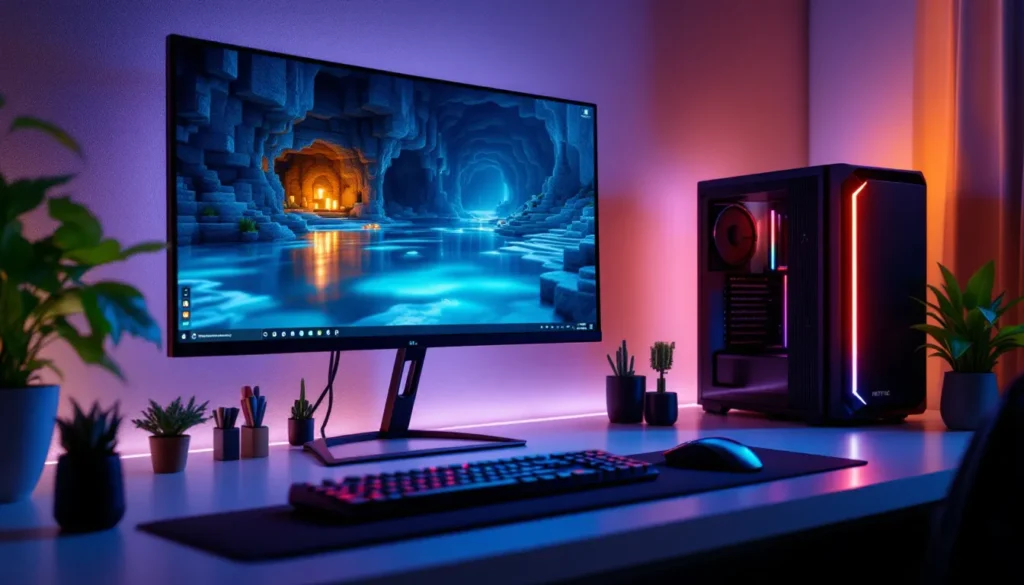
Ray tracing has transformed how Minecraft looks. What was once a blocky, flat-shaded world now gleams with realistic reflections, shadows, and lighting that make even a simple dirt path look cinematic. For years, ray tracing in Minecraft felt like a feature reserved for high-end gaming PCs, but as of 2026, it’s become more accessible than ever, and the visual payoff is absolutely worth the investment. Whether you’re playing on PC, Xbox, or PlayStation, this guide will walk you through everything you need to know about enabling ray tracing, optimizing your settings, and experiencing Minecraft the way the developers always envisioned it: with authentic light bouncing off water, ambient occlusion casting realistic shadows, and every surface responding dynamically to in-game lighting.
Key Takeaways
- Minecraft ray tracing simulates realistic light behavior by calculating how light rays bounce off surfaces in real-time, delivering dynamic reflections, shadows, and ambient occlusion that static traditional rendering cannot achieve.
- Ray tracing in Minecraft requires compatible hardware—minimum RTX 2060 or GTX 1660 for 30-40 FPS at 1080p, with RTX 3070+ recommended for smooth 60+ FPS gameplay at higher resolutions.
- Enable ray tracing by updating your GPU drivers, launching Minecraft Bedrock Edition (Java Edition doesn’t support it), navigating to Settings > Graphics, and toggling ray tracing on with your preferred quality level.
- Optimize ray tracing performance by balancing Ray Tracing Quality settings (Low to Ultra), limiting render distance to 12-16 chunks for stability, and aiming for consistent 60 FPS over higher frame rates with stuttering.
- Pair ray tracing with high-quality texture packs like Clarity HD or Nova that include physically-based rendering properties (normal maps, roughness, metallic values) to maximize the visual impact of ray tracing effects.
- Ray tracing technology in Minecraft continues to evolve with developer experiments in path tracing, procedural lighting, and mobile ray tracing support, ensuring the feature becomes increasingly accessible across more hardware and platforms.
What Is Ray Tracing in Minecraft?
Ray tracing simulates how light physically behaves in the real world. Instead of baking lighting into a static texture, the game engine traces the path of virtual light rays as they bounce off surfaces, creating realistic reflections, refractions, and shadows. In Minecraft’s context, this means water actually reflects the sky and landscapes, glass casts proper shadows, and torches illuminate environments with soft, organic falloff rather than harsh geometric gradients.
Minecraft’s ray tracing implementation uses NVIDIA RTX technology on Windows and relies on console-specific rendering pipelines on Xbox Series X/S and PlayStation 5. When enabled, it dramatically improves visual fidelity at the cost of computational power.
How Ray Tracing Differs From Traditional Rendering
Traditional Minecraft rendering uses pre-calculated lighting. Light levels are determined at chunk load time and stored in the world data. A torch at coordinates (100, 64, 200) illuminates a fixed radius, and that calculation doesn’t change unless the torch moves or the block configuration shifts. This approach is fast and allows massive draw distances, but it lacks dynamism.
Ray tracing, by contrast, calculates light behavior in real-time. When you place a torch, light immediately bounces off surrounding surfaces with physically accurate behavior. Move the torch, and shadows shift instantly. This realism comes at a computational cost, your GPU has to perform millions of light-ray calculations every frame.
The practical difference becomes obvious when you enter a cave with ray tracing enabled. Ambient light seeps through cracks, casting soft orange glows on distant stone. In traditional mode, those cracks might appear black or lit with a harsh cutoff. The ray-traced version feels alive: the traditional version feels static.
System Requirements for Minecraft Ray Tracing
Ray tracing isn’t cheap. Your hardware needs to handle real-time light simulation, which demands a modern GPU and sufficient CPU headroom. The good news: if you built a gaming PC in the last 2-3 years, you’re probably fine.
GPU and CPU Specifications
For Windows PC, NVIDIA GPUs with real-time ray tracing support are essential. Here’s the baseline:
- Minimum: GTX 1660 or RTX 2060 (you can technically enable ray tracing, but expect 30-40 FPS at 1080p with reduced settings)
- Recommended: RTX 3070 or better for smooth 1440p gameplay (60+ FPS)
- High-end: RTX 4080 or RTX 4090 for native 4K with ray tracing maxed out
AMD GPUs with RDNA 2 architecture (RX 6700 XT and above) now support ray tracing in Minecraft via driver improvements as of late 2025, though NVIDIA remains the standard.
Your CPU doesn’t need to be bleeding-edge, but it should handle high frame rates. A Ryzen 5 5600X or Intel i7-12700K provides solid performance. CPU bottlenecks matter less with ray tracing than with traditional rendering, since the GPU is doing the heavy lifting.
On Xbox Series X, ray tracing is baked into Minecraft Bedrock Edition with no user configuration. The console hardware handles it automatically.
On PlayStation 5, ray tracing support arrived in 2024 with specific updates to Minecraft Bedrock Edition. Performance modes toggle ray tracing on and off.
Memory and Storage Considerations
Ray tracing barely impacts RAM usage. Minecraft’s VRAM footprint is more relevant. With ray tracing textures and shaders loaded:
- Minimum VRAM: 4 GB (tight, expect stuttering with large render distances)
- Comfortable: 8 GB (handles 16-chunk render distance smoothly)
- Ideal: 10-12 GB+ (supports 32+ chunk render distance with full ray tracing detail)
If you’re playing on an RTX 2060 with 6 GB VRAM, you’ll need to reduce render distance to 12-16 chunks for stability.
Storage-wise, ray tracing texture packs can be 500 MB to 2 GB depending on resolution. Make sure you have at least 50 GB free on your drive for the base game, mods, and texture packs combined.
Getting Started: Installing Ray Tracing
Enabling ray tracing depends on your platform. The process is straightforward but requires specific steps for each.
Enabling Ray Tracing on Windows and Consoles
On Windows PC:
- Update your NVIDIA drivers to the latest version (visit NVIDIA’s website directly)
- Launch Minecraft Bedrock Edition (not Java Edition: ray tracing support is exclusive to Bedrock)
- Open Settings → Graphics
- Toggle Ray Tracing to ON
- Adjust Ray Tracing Quality (Low, Medium, High, Ultra) based on your GPU’s capability
- Create or load a world
If ray tracing doesn’t appear as an option, you’re likely running an incompatible GPU or an outdated driver. Verify your GPU is on the supported list.
On Xbox Series X/S:
- Open Minecraft
- Navigate to Settings → Graphics
- Ray Tracing appears as a toggle (Series X has it enabled by default in Performance mode)
- Toggle it based on your preference: Performance mode disables it for higher FPS, Fidelity mode enables it at 30-60 FPS
On PlayStation 5:
- Launch Minecraft (Bedrock Edition update required, available since April 2024)
- Go to Settings → Video
- Select Graphics Mode → Fidelity (enables ray tracing, 30 FPS) or Performance (disables ray tracing, 60 FPS)
Compatible Texture Packs and Resource Packs
Ray tracing becomes visually stunning when paired with the right texture pack. The standard Minecraft textures support ray tracing, but community-made packs amplify the effect.
Official Recommendation:
- Vanilla with Ray Tracing: Start here. Standard Minecraft textures work perfectly with ray tracing enabled and showcase the lighting system beautifully.
Community Favorites (2026):
- Clarity by ItsJustJono: Designed specifically for ray tracing, with enhanced PBR (physically-based rendering) textures that make surfaces look realistic. Water reflections are particularly stunning.
- Nova by Continuum: A premium ray tracing pack that adds detailed textures and complex material properties. Expect high VRAM usage.
- Complementary Shaders (paired with ray tracing): While technically a shader pack, it works with ray tracing to enhance environmental effects.
These packs range from free to $5-10 USD depending on the creator. Most are available through Minecraft Marketplace or third-party sites. Ensure you download only from official sources (Minecraft Marketplace, CurseForge, or creators’ official sites) to avoid malware.
Optimizing Ray Tracing Performance
Raw ray tracing quality doesn’t matter if your game stutters. Optimization is the difference between a beautiful experience and a frustrating one.
Graphics Settings and Adjustments
Minecraft’s ray tracing menu offers granular control. Here’s how to tune each setting:
Ray Tracing Quality:
- Low: Basic ray tracing with reduced bounces and shorter render distances. 60+ FPS on RTX 2060 at 1080p, but shadows look blocky and reflections lack detail.
- Medium: Balanced ray tracing. 45-60 FPS on RTX 3060 at 1440p. Most players find this sweet spot acceptable.
- High: Full ray tracing with multiple light bounces and realistic ambient occlusion. 30-45 FPS on RTX 3070 at 1440p.
- Ultra: Maximum ray tracing detail, 4K texture support, and extended light propagation. 20-30 FPS on RTX 4080 at 4K. Overkill for most players but stunning.
Render Distance:
Render distance has a massive impact on ray tracing performance. Each chunk requires light calculations, and ray tracing compounds that cost.
- 8 chunks: Fast, suitable for older RTX 2060-class hardware. Limiting but playable.
- 12 chunks: Good balance for mid-range cards (RTX 3060).
- 16 chunks: Standard for modern cards (RTX 3070+).
- 24+ chunks: For high-end systems (RTX 4070+). Anything beyond 32 chunks adds minimal visual improvement and tanks frame rates.
Other Toggles:
- Ambient Occlusion: Darkens crevices and adds depth. Enable it: the performance cost is minimal (1-2 FPS).
- Sky Reflection: Reflects the sky on water surfaces. Enable if your GPU supports it: disable only if you’re struggling for FPS.
- Subsurface Scattering: Light penetration through translucent blocks like leaves and ice. Disable on budget setups: enable on mid-range and above for realism.
Balancing Quality and Frame Rates
The golden rule: a consistent 60 FPS at lower settings beats inconsistent 80+ FPS with stutters. Aim for stability first, eye candy second.
For 60 FPS targeting:
- Set Ray Tracing Quality to Medium.
- Render Distance to 12-16 chunks (depending on GPU).
- Enable Ray Tracing Ambient Occlusion.
- Monitor FPS with an overlay (use NVIDIA GeForce Experience or similar).
- If dips occur during complex scenes (busy caves, large builds), reduce render distance by 2 chunks.
For 30 FPS (console-like experience):
- Push Ray Tracing Quality to High.
- Increase Render Distance to 20-24 chunks.
- Enable all ray tracing features.
- Accept occasional frame dips during extreme rendering loads.
Think of it like this: a consistent 60 FPS feels smoother than inconsistent 90 FPS with framedrops. Your brain prefers predictability over raw numbers. Performance analysis sites like DSOGaming provide detailed benchmarking data comparing various GPUs and settings, which helps clarify realistic expectations for your specific hardware.
Best Ray Tracing Texture Packs for 2026
Your GPU handles ray tracing, but texture packs determine how it looks. High-quality packs leverage PBR (physically-based rendering) properties that ray tracing can interpret: roughness, metallic values, and normal maps.
Popular Packs and Community Favorites
Clarity HD
ItsJustJono’s Clarity HD is the gold standard for ray tracing. It’s a 64x resolution pack with carefully crafted PBR textures. Wood looks like wood, stone looks weathered, water is crystal clear. It’s free on CurseForge and runs smoothly on modern hardware. The pack supports both Java and Bedrock editions (though ray tracing is Bedrock-only).
Nova
Nova by Continuum is a premium 512x texture pack designed for ray tracing. It’s visually stunning but demands 10+ GB VRAM. If you have the hardware, it’s worth the $10 price tag. The level of detail in stone, wood, and metal textures is industry-leading. Reflections in water look almost photorealistic.
Complementary Reimagined
Originally a shader pack, Complementary Reimagined now works alongside ray tracing to enhance lighting effects. It adds volumetric fog, god rays, and atmospheric effects that make landscapes feel vast. Free on CurseForge.
PureBD
PureBD is a lightweight 64x pack optimized for ray tracing performance. If you’re on a mid-range GPU (RTX 3060), this pack balances detail with stability. Minimal performance penalty, noticeable visual improvement.
How to Install Texture Packs:
- Download the
.zipfile from your chosen source. - Open Minecraft and navigate to Settings → Pack Selection.
- Click Import and select the texture pack file.
- Activate it and load a world.
- Restart the game to apply changes fully.
Visual Enhancements and Lighting Effects
Ray tracing fundamentally changes how textures are perceived. A 128x texture pack with ray tracing often looks better than a 256x pack without it, because lighting is doing half the visual work.
What Makes a Ray Tracing Texture Pack Shine:
- Normal Maps: Simulate surface irregularities without adding geometry. Stone with proper normals looks rough and weathered, not flat.
- Roughness Maps: Control how light scatters across surfaces. Polished obsidian looks shiny: sand looks matte.
- Metallic Maps: Define which surfaces reflect light like mirrors (iron ore, gold blocks). Ray tracing makes these reflections dynamic and realistic.
- Emissive Textures: Glowing materials (lava, sea lanterns) emit light that bounces onto nearby surfaces. With ray tracing, this is automatic and beautiful.
When evaluating packs, look at reflections in water and smooth surfaces. If they’re crisp and accurate, the pack’s PBR values are well-calibrated. If reflections look washed out or wrong, the pack wasn’t optimized for ray tracing. Tom’s Hardware’s GPU reviews often include Minecraft ray tracing benchmarks with various texture packs, helping you identify which configurations perform best on your hardware tier.
Troubleshooting Common Ray Tracing Issues
Ray tracing works flawlessly most of the time, but when it doesn’t, the issues are usually predictable and fixable.
Performance Problems and Solutions
Sudden FPS Drops:
If your frame rate tanks when entering new chunks or complex environments, your GPU is being bottlenecked. Solutions:
- Reduce render distance by 4 chunks immediately and test stability.
- Lower Ray Tracing Quality by one tier (High → Medium).
- Check background processes (Discord overlay, streaming software) that might steal GPU bandwidth. Disable them temporarily.
- Ensure your GPU isn’t thermally throttled. Monitor temperatures with NVIDIA’s overlay or a tool like TechSpot’s performance guides: if it’s above 85°C, your cooler or thermal paste may need attention.
Stuttering or Hitching:
Stutters indicate frame pacing issues, not raw performance. This often happens because chunks are being loaded and ray traced simultaneously.
- Enable VSync in Minecraft settings to lock frame rate to your monitor’s refresh rate.
- Increase the chunk preload distance slightly (counterintuitive, but sometimes loading more chunks at once prevents staggered calculations).
- Lower Ambient Occlusion detail if available: it’s a secondary cause of hitching.
Uneven Lighting or Corrupted Shadows:
Ray tracing occasionally produces artifacts, weird shadows or bright spots. This usually indicates a driver bug.
- Update your GPU driver to the absolute latest version.
- Restart Minecraft completely (close and reopen).
- If it persists, toggle ray tracing off and on to force a recalculation.
The Game Crashes When Ray Tracing Loads:
Crashes at world load indicate insufficient VRAM or driver incompatibility.
- Reduce render distance to 8 chunks and try again.
- Close all other GPU-intensive applications (Chrome with 50 tabs open, streaming software, etc.).
- Verify your GPU is officially supported (check NVIDIA’s or AMD’s official specs).
- Reinstall your GPU drivers from the manufacturer’s official website, not Windows Update.
Compatibility and Driver Updates
Driver Updates Matter:
GPU drivers are constantly optimized for ray tracing. An outdated driver might cause 10-15% performance loss. Update regularly.
NVIDIA: nvidia.com/Download monthly. Enable automatic updates in GeForce Experience if you prefer.
AMD: amd.com/drivers quarterly. AMD’s driver cadence is slower than NVIDIA’s, but critical updates are still important.
Java vs. Bedrock Edition:
This is the most important compatibility note: Ray tracing is exclusive to Minecraft Bedrock Edition. Java Edition doesn’t support it officially, though shader mods like SEUS can simulate ray tracing effects. If you’re a Java player, switching to Bedrock is required to access true ray tracing.
Xbox and PlayStation:
Console versions auto-update drivers, so compatibility is handled behind the scenes. If you’re on Xbox Series S/X or PlayStation 5, you’re guaranteed ray tracing support as long as your console is updated.
World Compatibility:
Ray tracing works with any existing world. Enabling it doesn’t require a new save, and disabling it won’t corrupt your world. You can toggle ray tracing on and off freely without consequences.
The Future of Ray Tracing in Minecraft
Ray tracing in Minecraft isn’t a finished feature: it’s an evolving one. As of early 2026, Mojang and Microsoft continue to refine it, with hints of larger changes ahead.
Path Tracing: Minecraft developers have experimented with path tracing, a more advanced form of ray tracing that calculates even more complex light interactions. Current ray tracing is limited to a few light bounces: path tracing can simulate infinite bounces, producing near-photorealistic results. Don’t expect this in the base game soon, but it’s under exploration.
Hardware Acceleration: New GPUs launching in late 2025 and 2026 include dedicated ray tracing silicon that’s faster than previous generations. This will push the boundaries of what’s achievable in Minecraft without massive frame rate sacrifices.
Procedural Lighting: Minecraft developers are researching ways to pre-compute portions of ray tracing to reduce real-time overhead. Imagine a hybrid system where complex lighting scenarios are calculated once and cached, then updated dynamically when you move light sources. This could allow ray tracing on weaker hardware.
Mobile Ray Tracing: As of 2026, ray tracing is unavailable on mobile (iOS/Android) Minecraft due to hardware limitations. This will likely change as mobile GPUs become more powerful, potentially bringing ray tracing to phones within the next 3-5 years.
Community Tools: The modding community is developing ray tracing shader packs and texture packs that work alongside official ray tracing, adding effects like lens flares, chromatic aberration, and custom bloom. Expect these to mature significantly over the next year.
Ray tracing transformed Minecraft from a blocky 2D-looking game to a visually competitive title. As the technology becomes more accessible and optimized, expect more players to adopt it as their default experience.
Conclusion
Ray tracing in Minecraft isn’t just a graphics gimmick, it’s a fundamental shift in how the game presents itself. Light behaves naturally, shadows fall realistically, and water reflects the sky instead of displaying a flat texture. For gamers with mid-range or high-end GPUs, it’s worth enabling.
Start with the settings in this guide: Bedrock Edition, Medium or High ray tracing quality, 12-16 chunk render distance, and a community texture pack like Clarity HD. Test your frame rates and adjust from there. If you’re on console (Xbox Series X/S or PS5), ray tracing is automatically available in Fidelity mode, just toggle it on and enjoy.
The future of Minecraft graphics is ray tracing. Whether you’re a casual builder admiring realistic water reflections or a speedrunner optimizing every FPS, understanding how to enable and optimize ray tracing ensures you’re getting the best visual experience your hardware can deliver. The blocky world of Minecraft has never looked better.
More Stories
Minecraft: The World Of Gaming Madness At ThePlayCentre — Your 2026 Guide
Inside ThePlayCentre Minecraft Archives: A 2026 Guide To Maps, Builds, And Community History
Bane Of Arthropods In Minecraft: Master The Enchantment In 2026 (ThePlayCentre Guide)